> ## Documentation Index
> Fetch the complete documentation index at: https://www.bazhuayu.com/docs/llms.txt
> Use this file to discover all available pages before exploring further.
# 自动识别验证码-团队版及以上专享
> 介绍八爪鱼采集器高版本功能:自动识别验证码-团队版及以上专享。
目前部分网站登录或者采集过程中会出现各类验证码,只有验证后才能继续采集数据,否则会导致采集的数据不正常,针对防采集验证,八爪鱼采集器提供了自动打码方案,从而实现在采集过程中自动对验证码进行验证,保障数据的正常采集。**团队版和企业版支持配置自动打码功能。**
> 验证码是额外收费的,需要充值账户余额使用,收费标准:**每个验证码0.05元**,每使用一个验证码后在账户余额扣除0.05元(需注意在实际采集过程中,验证码的识别结果,有0.1%的可能与实际的验证码不符,会存在误差范围)
##
## 一、自动打码支持的类型
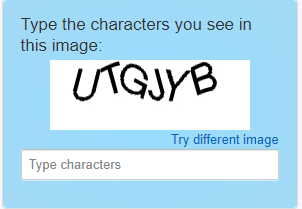
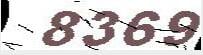
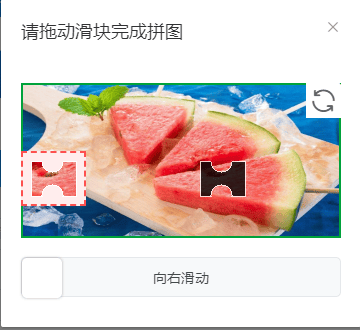
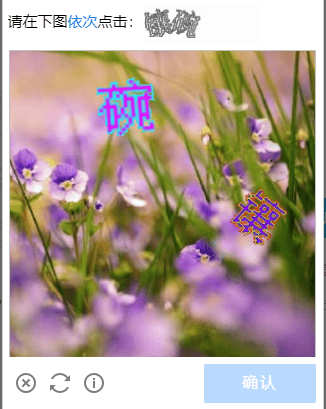
八爪鱼采集器目前可以支持以下几种类型的验证码自动打码
1.字母类型
 2.数字类型
 3.字母+数字组合类型
 4.滑块拼图类型
 5.点选文字类型
 ## 二、自动打码的配置
自动打码需要团队版和企业版才支持,升级套餐即可实现自动打码
### 1.图片验证类型自动打码
图片类型验证包含:数字、字母、字母+数字、数字运算
示例网址:amazon.com/dp/B08D7SVMW2
先看一个完整的图片验证码自动打码配置的操作
再看下详细拆分每一个步骤:
Step1. 输入网址打开网页,示例网站打开后会弹出验证码页面
## 二、自动打码的配置
自动打码需要团队版和企业版才支持,升级套餐即可实现自动打码
### 1.图片验证类型自动打码
图片类型验证包含:数字、字母、字母+数字、数字运算
示例网址:amazon.com/dp/B08D7SVMW2
先看一个完整的图片验证码自动打码配置的操作
再看下详细拆分每一个步骤:
Step1. 输入网址打开网页,示例网站打开后会弹出验证码页面
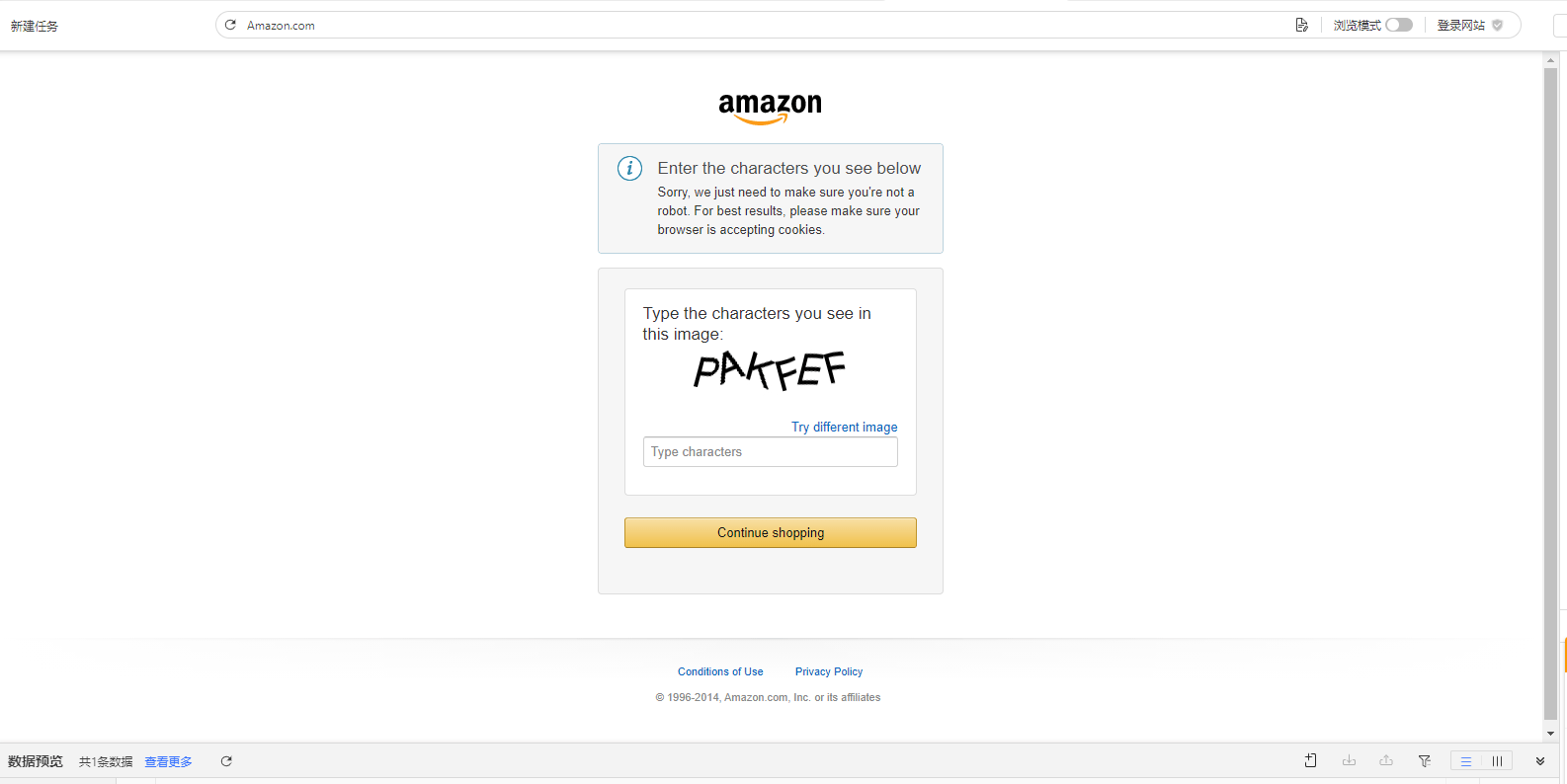 Step2. 选中页面中的验证码,再弹出的操作提示框中,选择【识别验证码】,再选中要识别的验证码类型。根据提示,继续在页面中选中验证码的输入框,以及【提交】按钮(根据网页实际情况来选择,登录,提交或验证按钮)。
Step3.接下来,需要配置【识别失败】场景。点击【确定】,八爪鱼会自动提交一个错误验证码,此时页面中出现【验证码错误】提示。点击页面中的【验证码错误】,再点击操作提示框中的【确认错误】。
> **特别说明**:
>
> a. 为什么要配置【识别失败】场景?因为自动识别验证码,可能存在识别错误的情况(网站需要多次输入验证码/八爪鱼对接的打码平台有0.1%概率出错)。八爪鱼需要知道识别错误后的提示是什么,根据是否出现提示判断是否识别失败。如果识别失败,则再次自动识别,直至识别正确。
Step4:下面,需要配置【识别成功】场景。点击【开始配置识别成功场景】,在弹出的操作提示框中,输入正确的验证码,然后点击【应用到网页并完成配置】,可以看到,验证码识别成功。
Step5: 按需求配置采集规则。以上4步已经配置好了识别验证码的步骤,现在可以按需配置后续的采集规则即可。
Step6:启动本地采集后,可以看到,八爪鱼按照我们配置好的流程,自动识别验证码,完成登录并采集数据。
> **特别说明**:
>
> a. 勾选【自动识别验证码】后,自动识别才会生效,如果不勾选则需要自己手动输入验证码。【自动识别验证码】会消耗验证码余额。
>
> b. 进行本地采集时,第一次自动将验证码识别后,需帮助系统点击一次【确认】。进行云采集时,这个过程由八爪鱼自行完成,无需用户手动确认,并且云采集默认会拆分任务进行采集,如果任务里面设置了使用验证码,则拆分的每个子任务都会消耗验证码进行采集。
>
> c.【自动识别验证码】,只支持自动识别三种类型的验证码:输入验证码、文字点选和部分滑块验证码。
>
> d. 【自动识别验证码】默认勾选 Ajax,超时时间为 5 秒。可根据网站实际加载情况进行更改,具体请查看 [Ajax网页采集方法](https://www.bazhuayu.com/helpcenter/docs/R01mM3)。
>
>
### 2.滑块拼图类型自动打码
示例网址:[https://txzbgl.miit.gov.cn/#/gateway](https://txzbgl.miit.gov.cn/#/gateway)
先看一个完整的滑块拼图验证码自动打码配置的操作
再看下详细拆分每一个步骤:
Step1. 输入网址打开网页,完成出现验证码之前的步骤配置(此示例网站是点击更多按钮或者翻页之后会出现滑块验证码)
Step2. 选中页面中的验证码,再弹出的操作提示框中,选择【识别验证码】,再选中要识别的验证码类型。根据提示,继续在页面中选中验证码的输入框,以及【提交】按钮(根据网页实际情况来选择,登录,提交或验证按钮)。
Step3.接下来,需要配置【识别失败】场景。点击【确定】,八爪鱼会自动提交一个错误验证码,此时页面中出现【验证码错误】提示。点击页面中的【验证码错误】,再点击操作提示框中的【确认错误】。
> **特别说明**:
>
> a. 为什么要配置【识别失败】场景?因为自动识别验证码,可能存在识别错误的情况(网站需要多次输入验证码/八爪鱼对接的打码平台有0.1%概率出错)。八爪鱼需要知道识别错误后的提示是什么,根据是否出现提示判断是否识别失败。如果识别失败,则再次自动识别,直至识别正确。
Step4:下面,需要配置【识别成功】场景。点击【开始配置识别成功场景】,在弹出的操作提示框中,输入正确的验证码,然后点击【应用到网页并完成配置】,可以看到,验证码识别成功。
Step5: 按需求配置采集规则。以上4步已经配置好了识别验证码的步骤,现在可以按需配置后续的采集规则即可。
Step6:启动本地采集后,可以看到,八爪鱼按照我们配置好的流程,自动识别验证码,完成登录并采集数据。
> **特别说明**:
>
> a. 勾选【自动识别验证码】后,自动识别才会生效,如果不勾选则需要自己手动输入验证码。【自动识别验证码】会消耗验证码余额。
>
> b. 进行本地采集时,第一次自动将验证码识别后,需帮助系统点击一次【确认】。进行云采集时,这个过程由八爪鱼自行完成,无需用户手动确认,并且云采集默认会拆分任务进行采集,如果任务里面设置了使用验证码,则拆分的每个子任务都会消耗验证码进行采集。
>
> c.【自动识别验证码】,只支持自动识别三种类型的验证码:输入验证码、文字点选和部分滑块验证码。
>
> d. 【自动识别验证码】默认勾选 Ajax,超时时间为 5 秒。可根据网站实际加载情况进行更改,具体请查看 [Ajax网页采集方法](https://www.bazhuayu.com/helpcenter/docs/R01mM3)。
>
>
### 2.滑块拼图类型自动打码
示例网址:[https://txzbgl.miit.gov.cn/#/gateway](https://txzbgl.miit.gov.cn/#/gateway)
先看一个完整的滑块拼图验证码自动打码配置的操作
再看下详细拆分每一个步骤:
Step1. 输入网址打开网页,完成出现验证码之前的步骤配置(此示例网站是点击更多按钮或者翻页之后会出现滑块验证码)
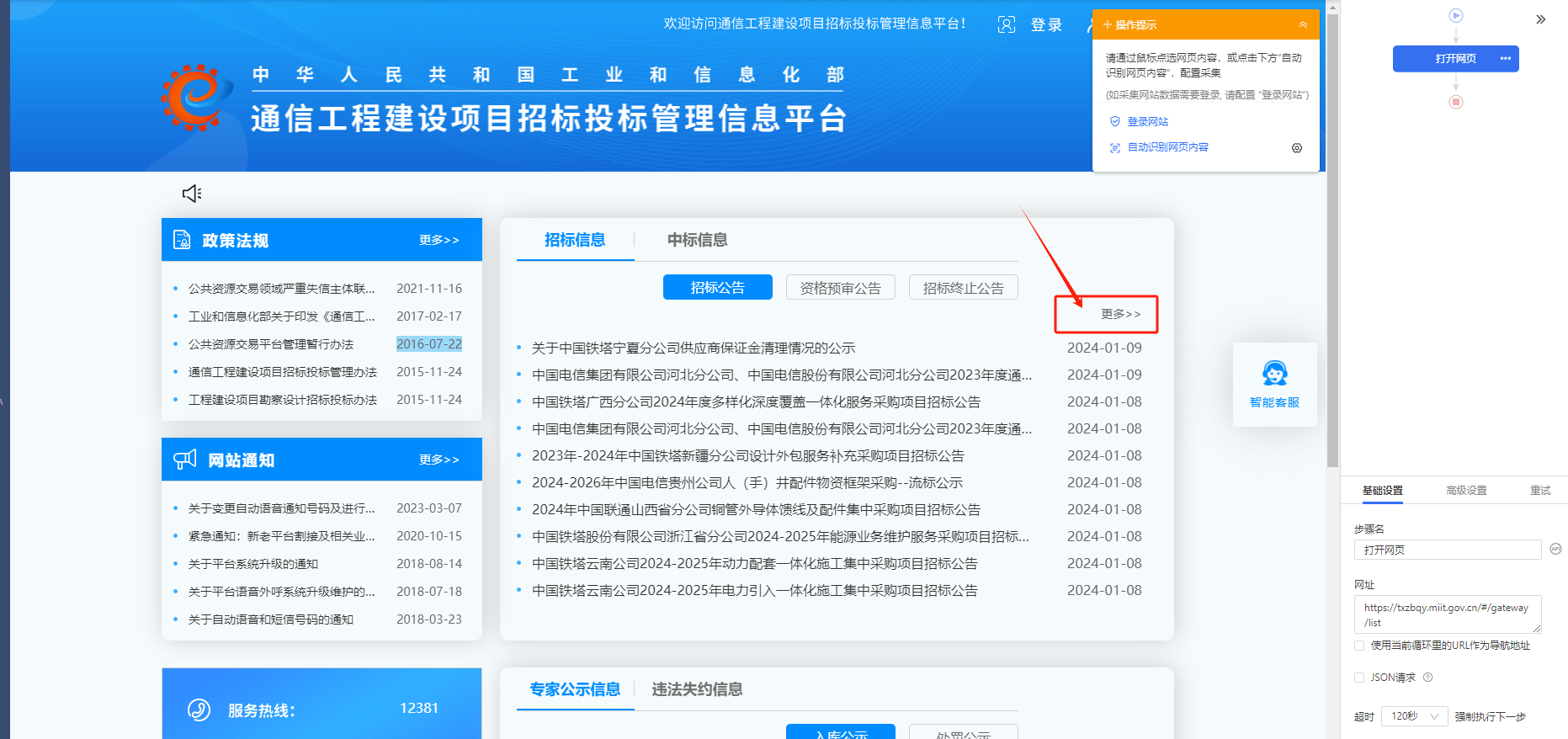 Step2. 选中页面中的验证码,再弹出的操作提示框中,选择【识别验证码】,再选中要识别的验证码类型,即滑块拼图
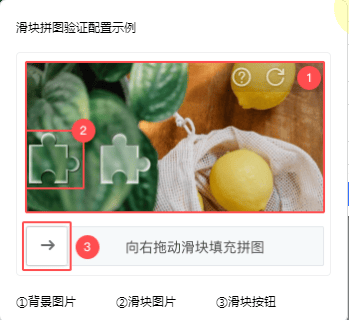
Step3. 依次选中验证码的背景图片,滑块图片,滑块按钮所在的位置(如图),帮助系统获取到其所在的xpath
Step2. 选中页面中的验证码,再弹出的操作提示框中,选择【识别验证码】,再选中要识别的验证码类型,即滑块拼图
Step3. 依次选中验证码的背景图片,滑块图片,滑块按钮所在的位置(如图),帮助系统获取到其所在的xpath
 Step4.配置当页面出现错误特征时进行重试。切换浏览模式,手动滑动滑块,查看滑动失败之后会出现的提示。在该示例网页,滑动失败后会提示:”验证失败,请控制拼图对齐缺口“,所以可以设置当页面出现文本“验证失败”时进行重试
Step5: 以上4步已经配置好了识别滑块验证码,现在可以按需配置后续的采集规则,启动采集,可以看到系统在根据配置在自动滑动滑块。
### 3.点选文字类型自动打码
示例网址:[https://space.bilibili.com/33775467](https://space.bilibili.com/33775467)
该网站输入账号密码点击登录后需要点选文字验证,如果其他网站是采集采集数据出现点击文字验证的,在配置任务的时候方法一样
Step4.配置当页面出现错误特征时进行重试。切换浏览模式,手动滑动滑块,查看滑动失败之后会出现的提示。在该示例网页,滑动失败后会提示:”验证失败,请控制拼图对齐缺口“,所以可以设置当页面出现文本“验证失败”时进行重试
Step5: 以上4步已经配置好了识别滑块验证码,现在可以按需配置后续的采集规则,启动采集,可以看到系统在根据配置在自动滑动滑块。
### 3.点选文字类型自动打码
示例网址:[https://space.bilibili.com/33775467](https://space.bilibili.com/33775467)
该网站输入账号密码点击登录后需要点选文字验证,如果其他网站是采集采集数据出现点击文字验证的,在配置任务的时候方法一样
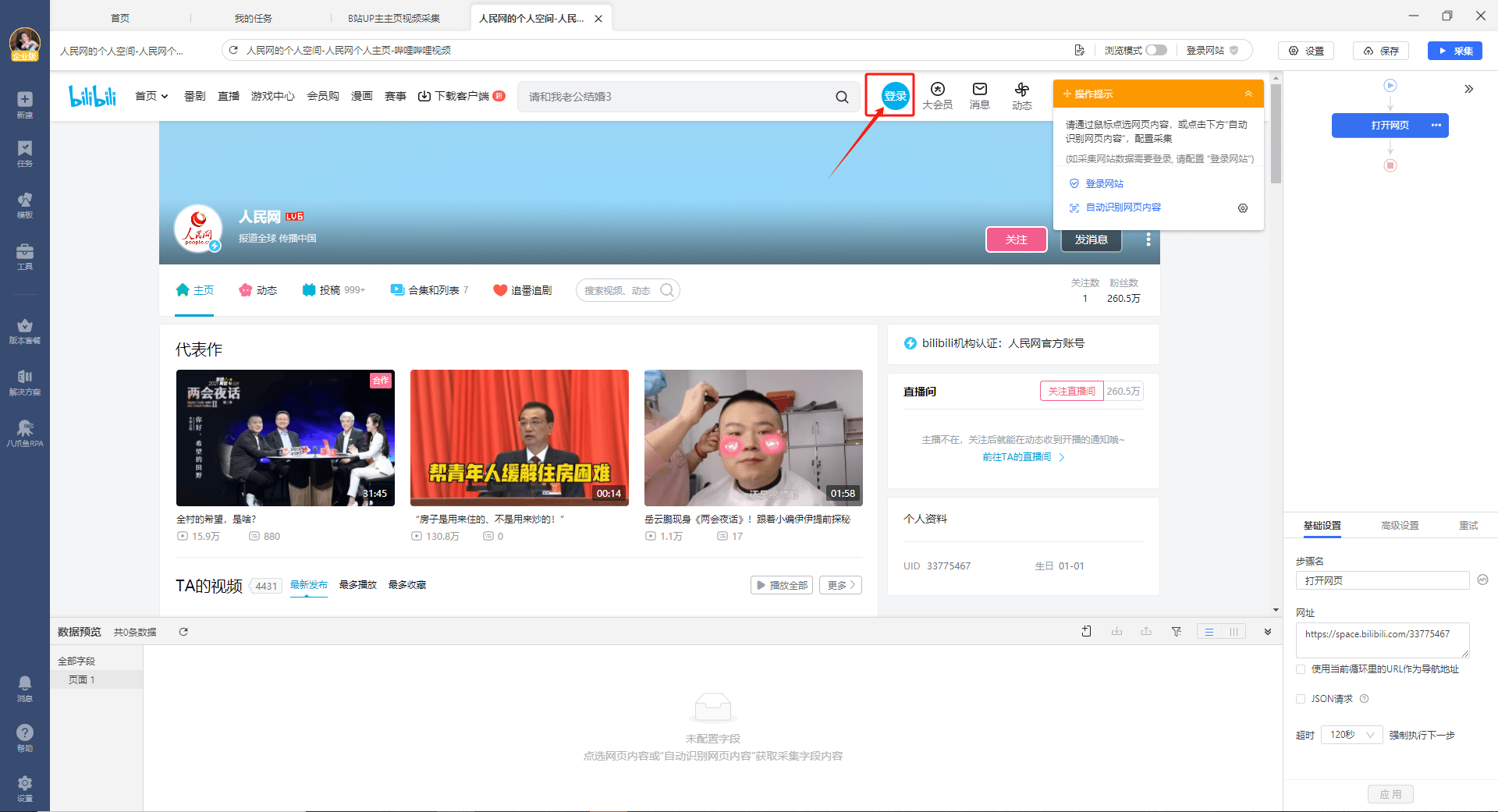
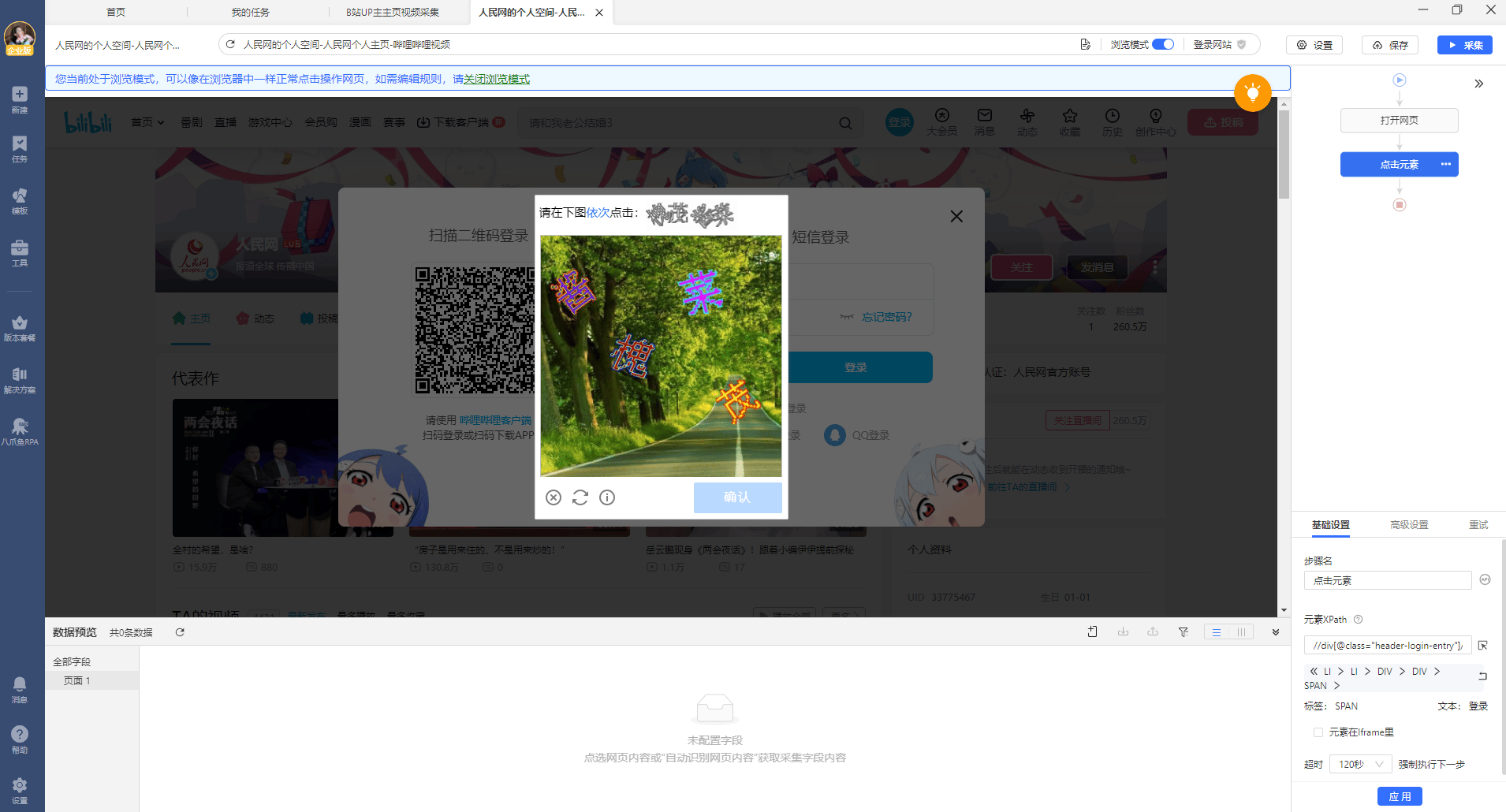 先看一个完整的文字点选自动打码配置的操作
再看下详细拆分每一个步骤:
Step1: 点击文字点选区域位置,根据提示选择【识别验证码】,然后选择验证码类型为【点选文字】
先看一个完整的文字点选自动打码配置的操作
再看下详细拆分每一个步骤:
Step1: 点击文字点选区域位置,根据提示选择【识别验证码】,然后选择验证码类型为【点选文字】
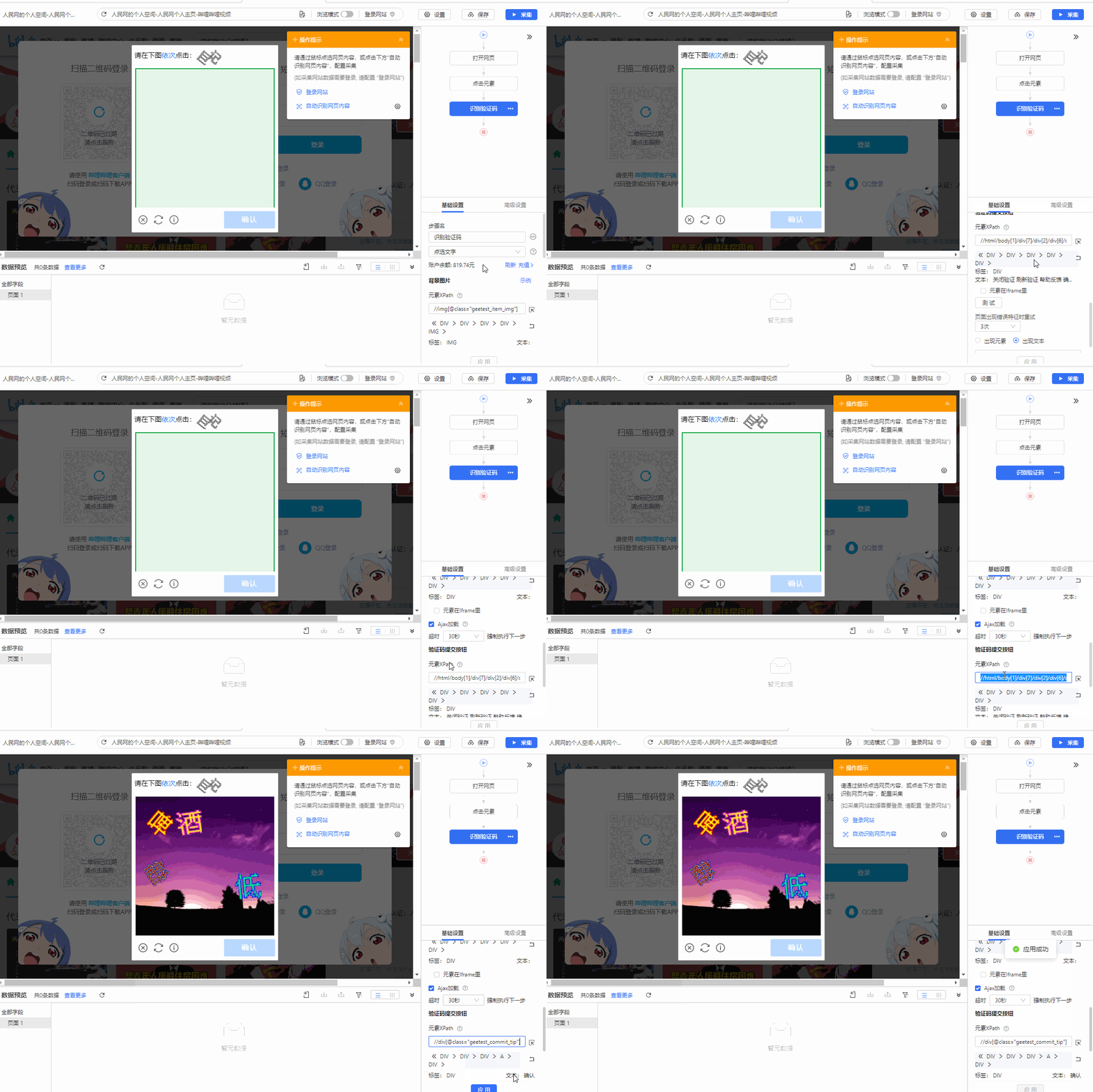
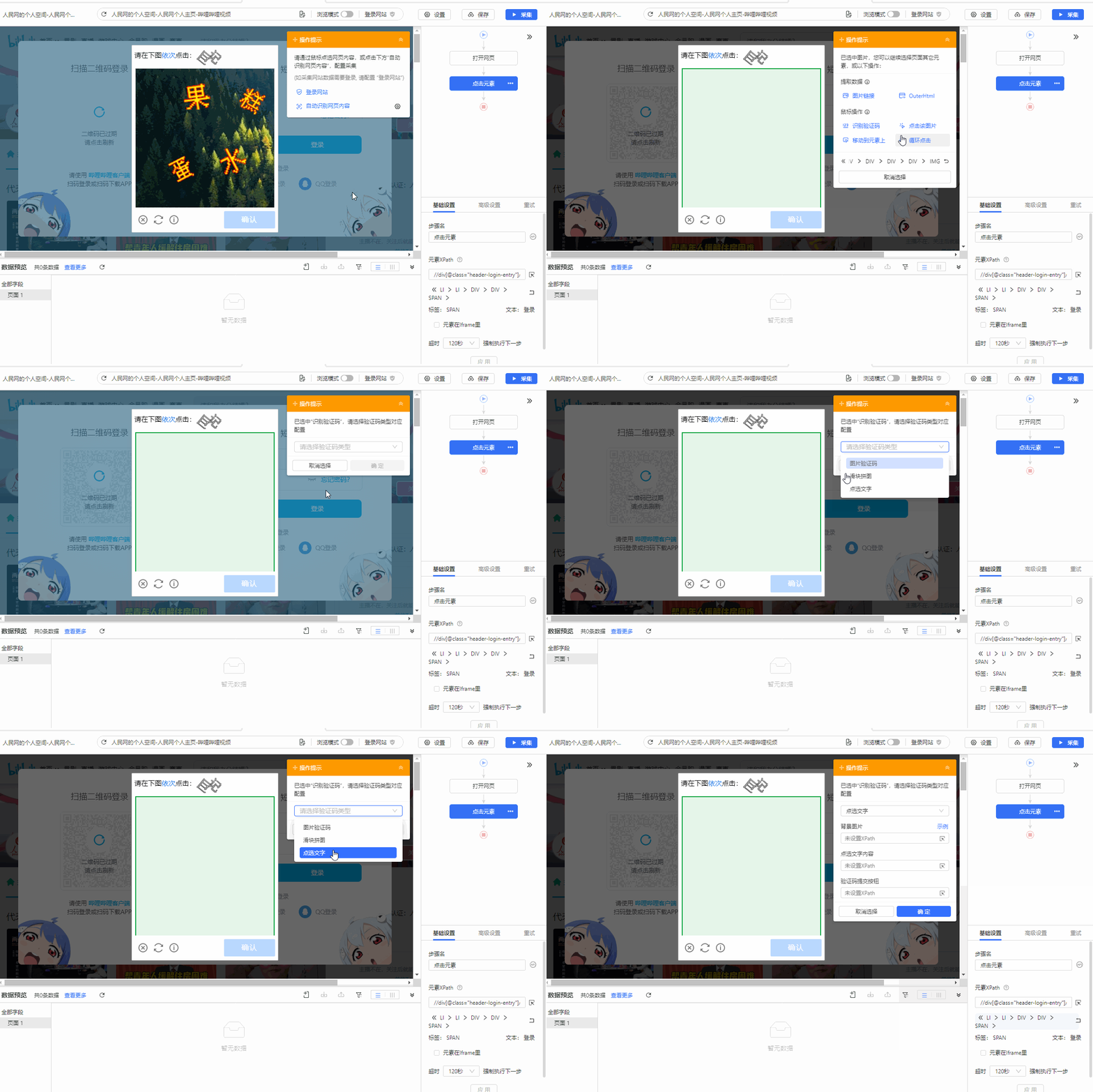 Step2:背景图片xpath,点击背景图片后面的按钮
 ,然后移动鼠标到背景图片区域,鼠标左键单击即可自动填充xpath
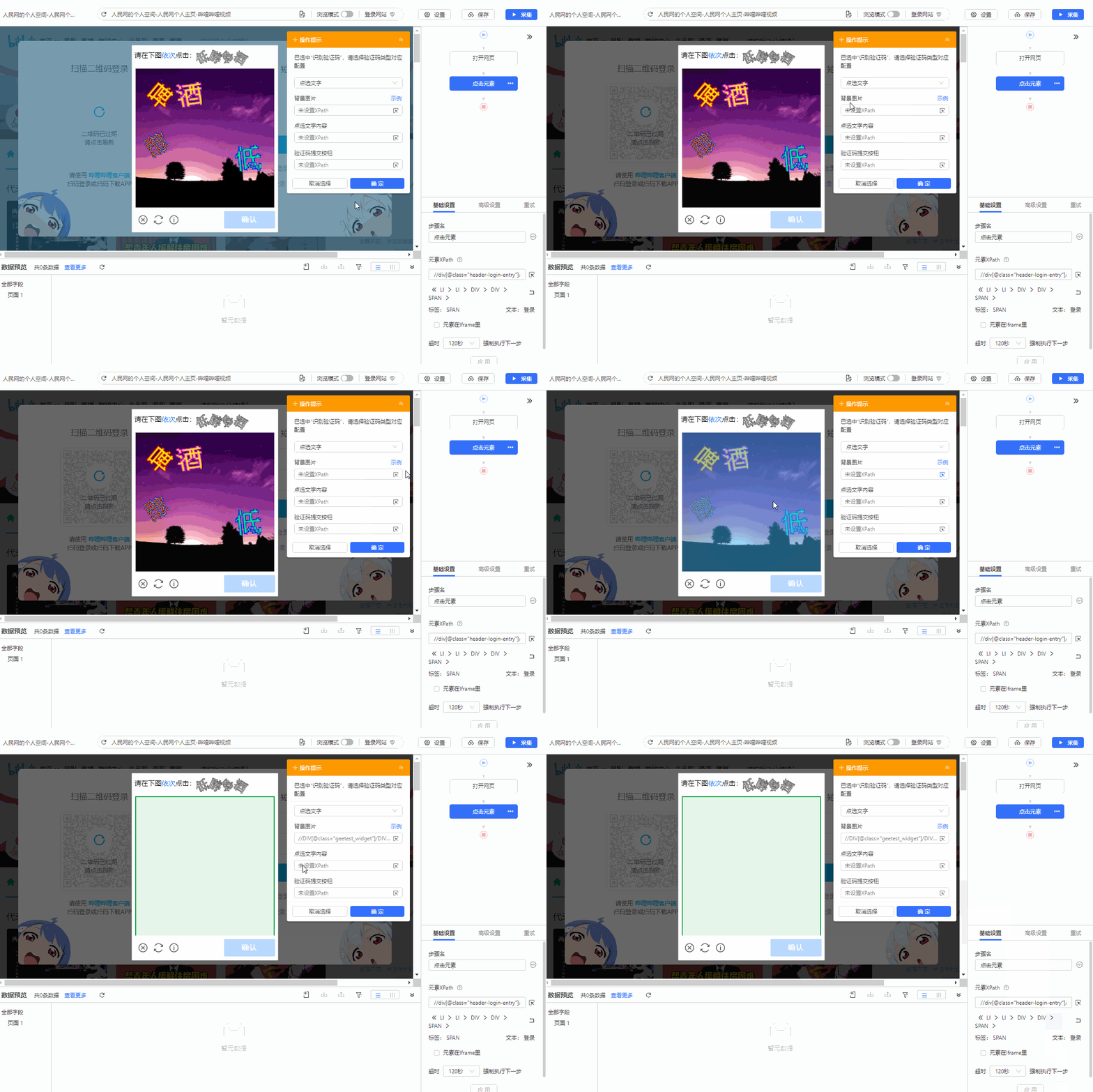 Step3:点选文字内容xpath,方法同Step2
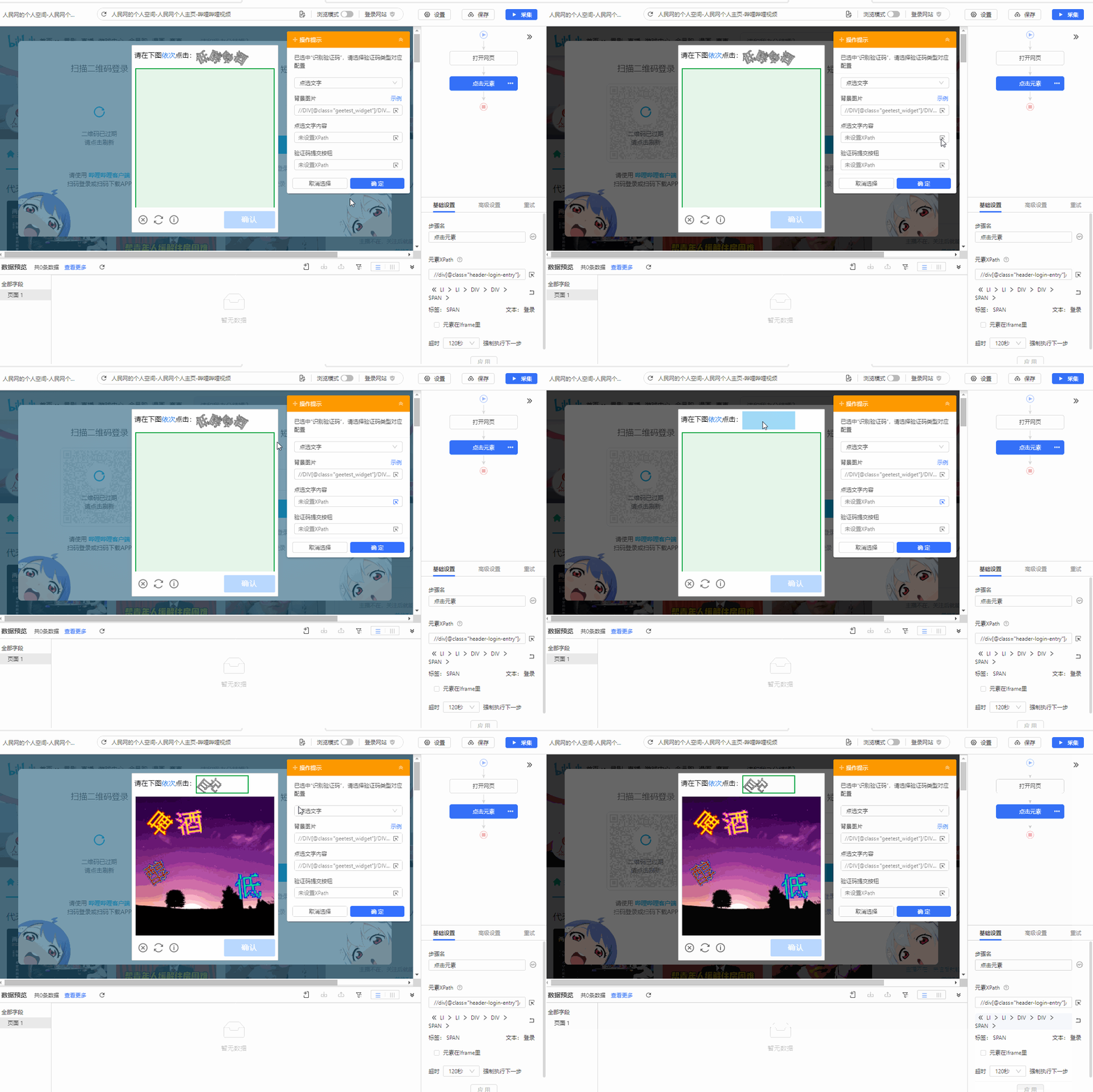 Step4:点选文字内容xpath,方法同Step2,然后点【确定】即可生成识别验证码步骤
 通过以上四个步骤就可以配置好文字点选类型验证码的自动打码配置了,即可实现自动点击文字验证。
> 这里【验证码提交按钮】的xpath默认生成的不准确,需要手动修改为//div\[@class="geetest\_commit\_tip"],修改xpath需要学习掌握[xpath知识](https://www.bazhuayu.com/helpcenter/docs/pWdSFO)
>
>
通过以上四个步骤就可以配置好文字点选类型验证码的自动打码配置了,即可实现自动点击文字验证。
> 这里【验证码提交按钮】的xpath默认生成的不准确,需要手动修改为//div\[@class="geetest\_commit\_tip"],修改xpath需要学习掌握[xpath知识](https://www.bazhuayu.com/helpcenter/docs/pWdSFO)
>
>  作者:妙卡、FAN